Pine is a very lightweight MUA, yet at the same time it supports all the features you could dream about (This of course depends on your dreams, YMMV :) . Here are a few tips:
If you are logged in on a Unix machine (i.e. SGI-, Solaris- or Linux-box) you don't need anything more than a 'xterm' and in the xterm run 'ssh penti.sit.fi' , penti asks you for your password and if you type it right, you are logged in. :)
Next you are presented with a preferences box. Probably the only things you want to enter is 'penti.sit.fi' for remote host, and your login name in *lowercase*. Just press the OK button.
The ssh program will notice that you haven't connected to penti before, and will present a box with penti's identity key. Just ignore it, and press enter.
Now ssh asks for your password. Enter it in the box and you should be logged in.
Remember: Unix sees a difference in upper- and lowercase. Always use lowercase, unless you are shure that you should use uppercase letters. (e.g. A password can be AerG34&l and here you would have to use *both* upper- and lowercase).
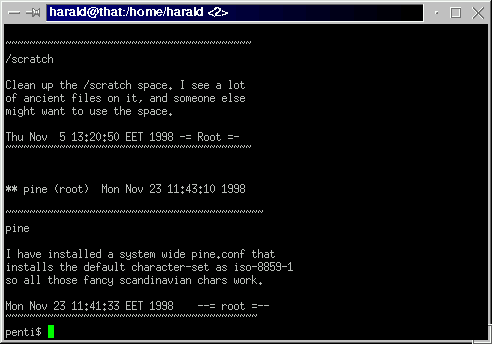
Here's a view of the shell after one has successfully logged in. There is a program called 'news' installed on penti, which tells you about changes made on the system. You can ignore these for now, and review them later with 'news' (tip: use 'man news' to learn more about how to read sysnews. Remember that you have to press 'q' to exit the man reader!!!)
The next time you login to penti, you will notice that the system keeps track of your e-mails, and it tells you if you have:
The system will also print out some random funny text for you. This is called a 'fortune'
Example:
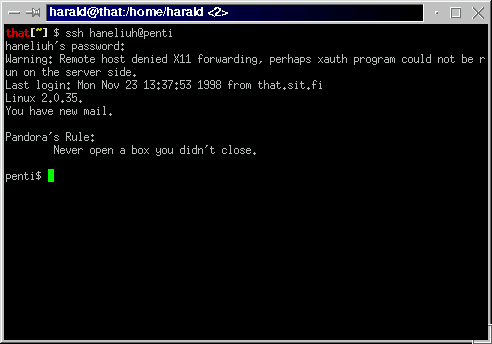
I have new e-mail. Yummy!! :)
Now that you are logged in, there are several ways to start pine, but the easiest, and most common, is to just type in 'pine' and press enter. You have to use this method the first time you start pine, else it won't create your mail/ folder.
In the future, when you get more accustomed to pine you can start it with 'pine -i' to get right in to your mailbox. Alternatively you can start it as 'pine user@domain.fi' to jump straight into the composer.
When you start pine for the first time, it will create the folder mail/ in you home-directory, pine uses this directory to save your other folders than INBOX. Pine will tell you something like this: ú
penti$ pine
Creating subdirectory "/home/haneliuh/mail" where Pine will store
its mail folders.
Tip: the ^ sign in front of a letter means 'Cltr', so ^X means Ctrl-X
All available commands in pine are showed in the bottom of the window. Here's an example:
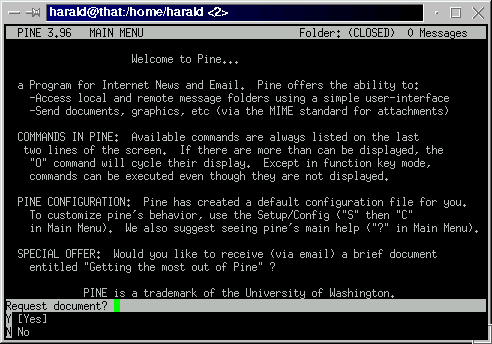
The first time you start pine, it asks you if you want to receive an e-mail which tells you more about pine. Here you can either a) press 'Y' to get the mail or b) Press enter (There are [ ] signs around 'Yes', which means that this is the default action). In some time, you will receive an e-mail which tells you more about pine.
Here is a view of the main-window:
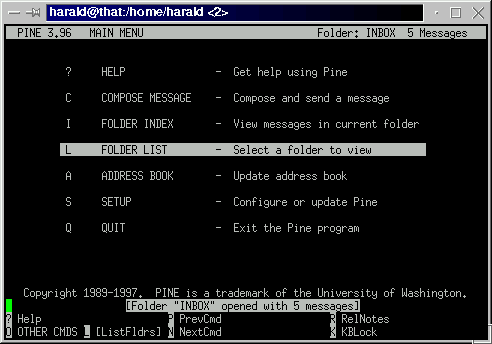
As you can see, there are now a whole lot of commands you can use in the bottom of the screen. View more commands available with 'o'.
Here you can press 'c' to compose a new message, or 'i' to jump right into your INBOX. You could also press 'l' to get to the index of all your folders. Play around and take a look at what all the commands do. You can get back to the main menu with 'm'
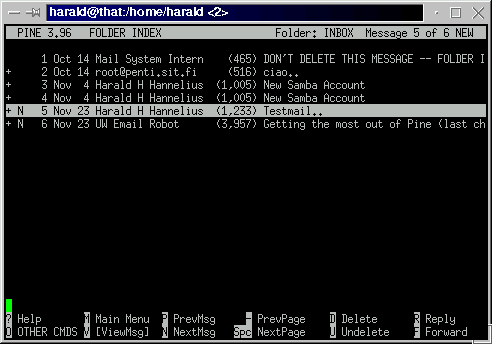
If you, in the previous command pressed 'i', you should be in your inbox. This is a view of all e-mails you have received. You can press enter on one of them to view the mail, (because there are [ ] signs around 'view') or use 'v'. And now again, look at the bottom of the page, available commands have changed, now there are, among others, an 'r'. 'r' stands for reply, which can be very useful :)
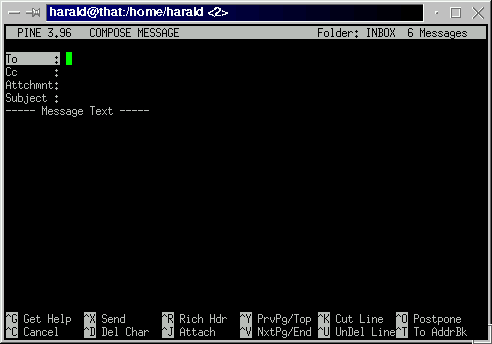
Here's is a view of pine after one has pressed 'c' in the main menu, or alternatively, one could start pine with the command 'pine user@somedomain.com'. This would start pine in compose mode directly and the recipient's address would readily be typed on the 'to:' line. In this mode pine exits when you have sent the mail with ^X.
If you started pine with just 'pine' and started composing with 'c' you begin by typing in the recipient's e-mail address. If it is a local user, i.e. the user is on the same host as you are logged in to, it is sufficient to just type the username, pine then looks up the user from the system password file to get the users forname and surname. If the user in non-local, i.e. on another server in the world you will have to type in the users whole internet e-mail address (e.g. Harald@iki.fi). You can also use an addressbook. More about addressbooks later.
Next you type in a subject. This is usually mandatory, or at least polite. You can move between fields with UpArrow/DownArrow, Tab, or enter.
Next you type in the text you want to send. This text forms the body of the e-mail.
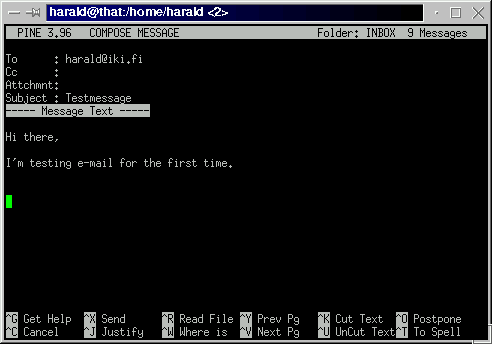
To send, just press ^X and answer 'y' or press enter when pine asks you to really send.
Example:
Whenever you have finished e-mailing, you will want to exit out of pine, and optionally log out of penti.sit.fi. This can be done with 'q', unless you are in some kind of compose or viewer mode. One viewer mode would be when you view an attachment, in that case you would first have to exit the viewer, and then press 'q' to exit. Pine then asks you if your really want to exit. This question can be disabled in Config ('Main -> Setup -> Config'). Next you have to log your self out. This can be acheived byt typing 'logout', 'exit' or Pressing ^D.
Here are some commands you can try when you are not using pine:
See a more complete beginner's guide for unix/linux and www-pages at TLR
Or have a look at a more generic unix guide at hut.fi:(in finnish)
Quick Reference guide at hut.fi:
Back to top of page